
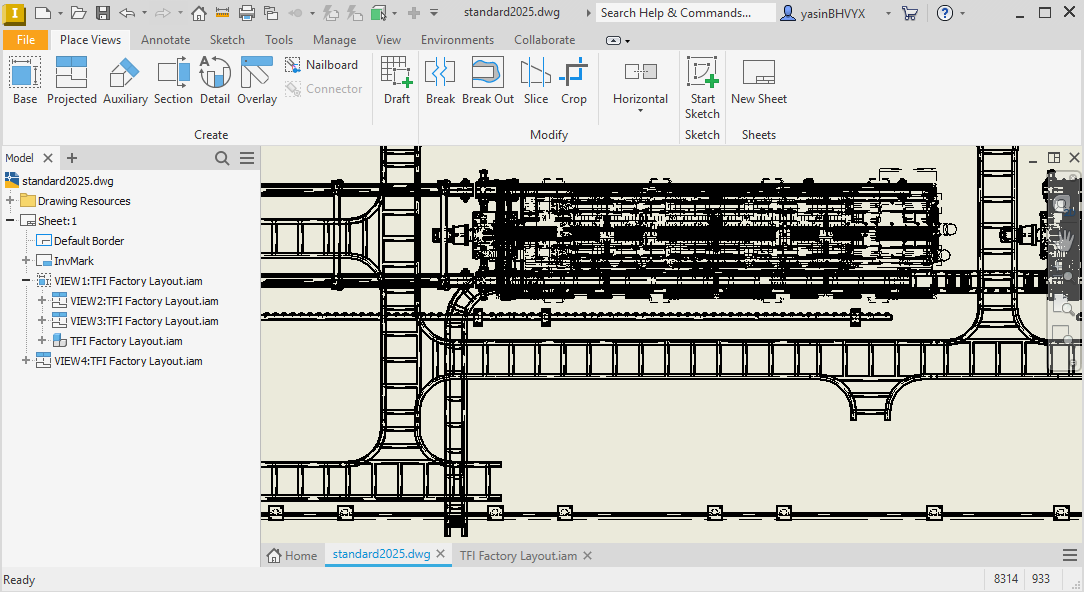
If your Inventor drawings suddenly take ages to generate (or your Invmark drawing score tanked) on a newer PC, this post is for you.
In short: on some newer systems, a background process that Inventor uses for drawing generation (InventorViewCompute.exe) can end up running with the wrong CPU priority, which slows everything down. The main fix here is to force that process to always run at Normal or Above normal priority using Process Lasso.
This doesn’t 100% solve the issue in all cases, but it does make things noticeably better. In my tests, drawings can still sometimes get slower, just not nearly as painfully slow as before.
The issue
I’ve been testing in Invmark and I’ve run into the issue that the drawing generation score was just a lot slower than on my old PC. Looking at other results I can see this is a pretty universal problem among others.
After some testing I figured out that this problem doesn’t happen if the CPU priority of the InventorViewCompute.exe process is Normal or Above normal.
I think that, especially with the gaming-focused software scheduling changes for new CPUs (Intel P/E cores and AMD CCDs), some changes are pushed to make sure that processes with higher priority interrupt other processes to reduce latency for those games. More than in old versions like for example Windows 10.
That is nice for games, but it causes the drawing generation to be much slower.
The idea of the main fix
The solution is to make sure the priority is higher, right? For Autodesk this would be easy, as they can change the program.
For us users it’s more difficult. The InventorViewCompute.exe process gets spawned and removed after it is done, so you would have to apply the priority change every single time.
My way to fix this is by using Process Lasso. This is a tool that can do all kinds of cool things and optimisations, like having something always run on specific priorities or specific CPU cores.
It runs in the background and you can set it to automatically change the CPU priority of a process whenever it appears.
To do this you need admin access and Process Lasso installed. (Sorry, this is something that you usually can’t do on locked-down corporate PCs.)
Step-by-step (Process Lasso)
Step 1
Start a big project drawing generation, preferably something with hidden lines so you have some time to work while the drawing is being generated.
This gives Process Lasso time to see InventorViewCompute.exe appear.
Step 2 Find process
Open Process Lasso and look under Inventor.exe for the InventorViewCompute.exe process.
If you don’t see it, start another heavy drawing generation and keep an eye on the list.
Step 3 change priority
Right-click InventorViewCompute.exe and set CPU Priority → Always to Normal or Above normal.
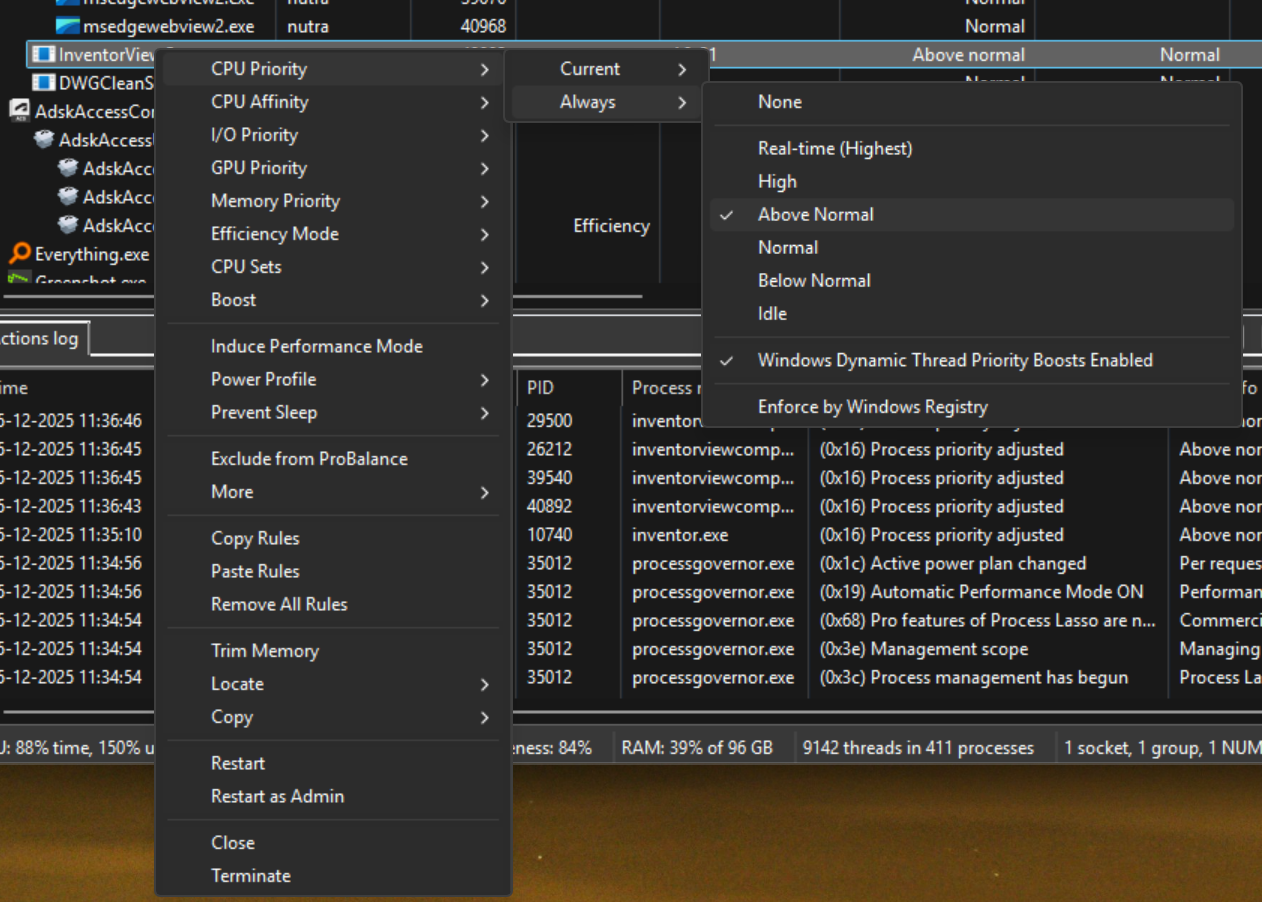
Now you are done! As long as Process Lasso is running, it will automatically set the priority whenever you create drawings.
This should bring your drawing generation times (and Invmark drawing score) much closer to what you would expect from your hardware.
Note: as mentioned above, this is not a magic bullet. It won’t completely eliminate slowdowns in every situation, but it should make the worst cases a lot more reasonable.
Alternative no-admin
If you don’t have admin access and can’t install Process Lasso, there is another way to get faster drawing generation.
The caveat is that you lose the ability to keep working while the drawing generates in the background. Instead, you have to wait for it to finish, because this method stops it from running as a background task.
In options - Drawing, uncheck Enable background updates (see screenshot below):
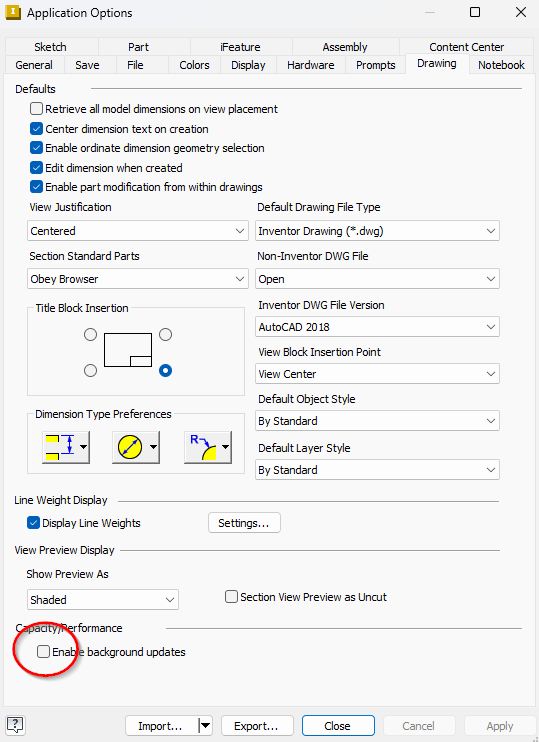
With this setting changed, drawing generation can speed up, but you should expect that it ties up Inventor while it runs.
Bonus: Improve performance on Intel
If you are on an Intel platform with P-cores and E-cores, you can squeeze out some extra performance by limiting InventorViewCompute.exe to just the P-cores.
You do this in Process Lasso by going to CPU affinity → Always → Select CPU affinity, and then clicking the P-cores button.
This way, the heavy lifting for drawing generation stays on the fast cores, which can help make things a bit more consistent and responsive during generation.